Instructions for iOS devices:
When you open the link to the virtual tour, it asks for permission, as shown in the image. If it did not ask you or you accidentally denied access, you need to re-enable the permission.
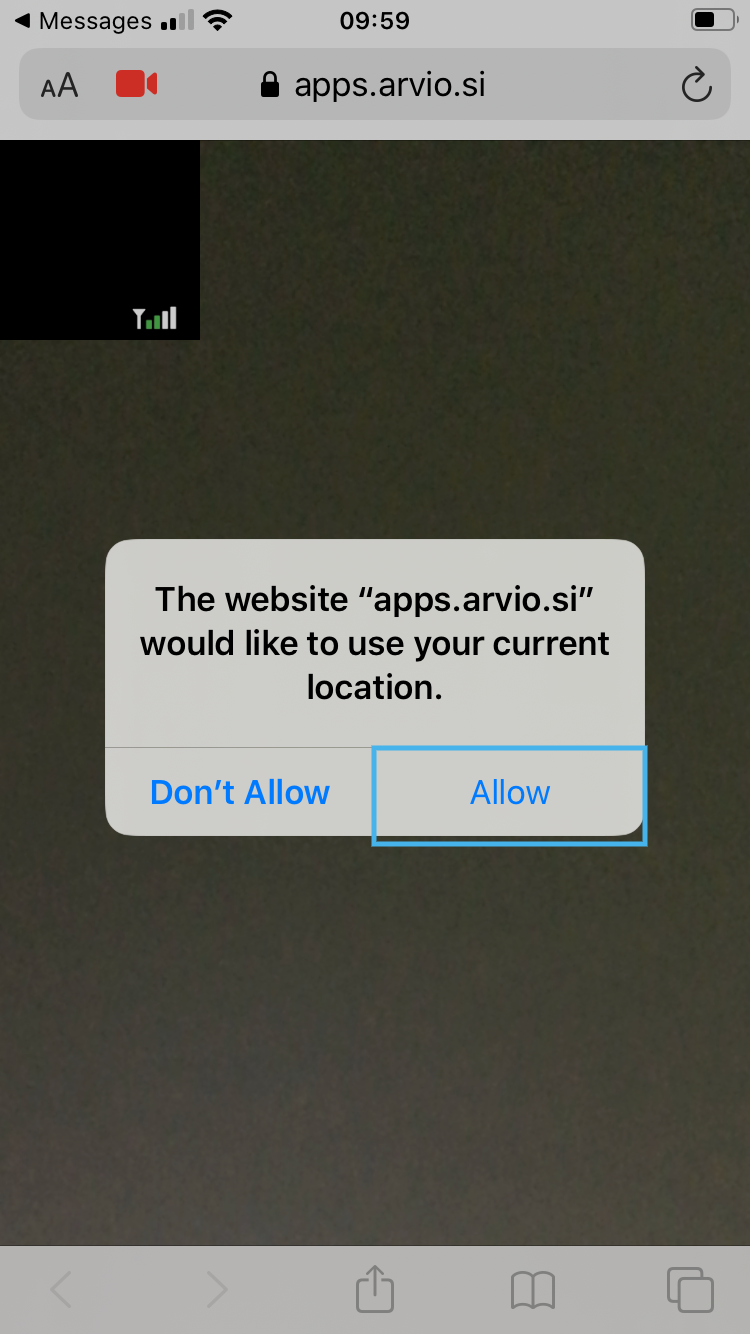
1. Open the page of the sent link in the browser to establish a virtual tour.
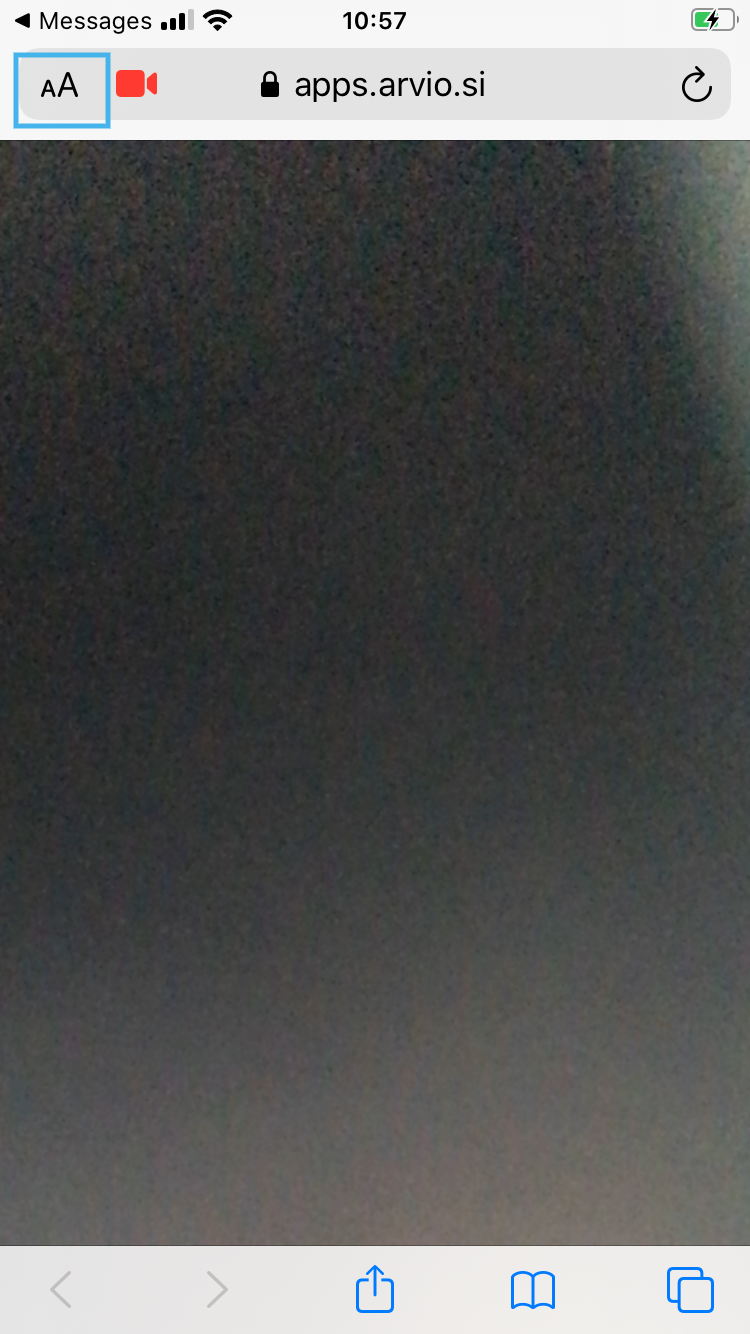
2. Tap the “aA” icon in the upper left corner of the screen. The “aA” icon may be located in the lower left corner of the screen on some devices.
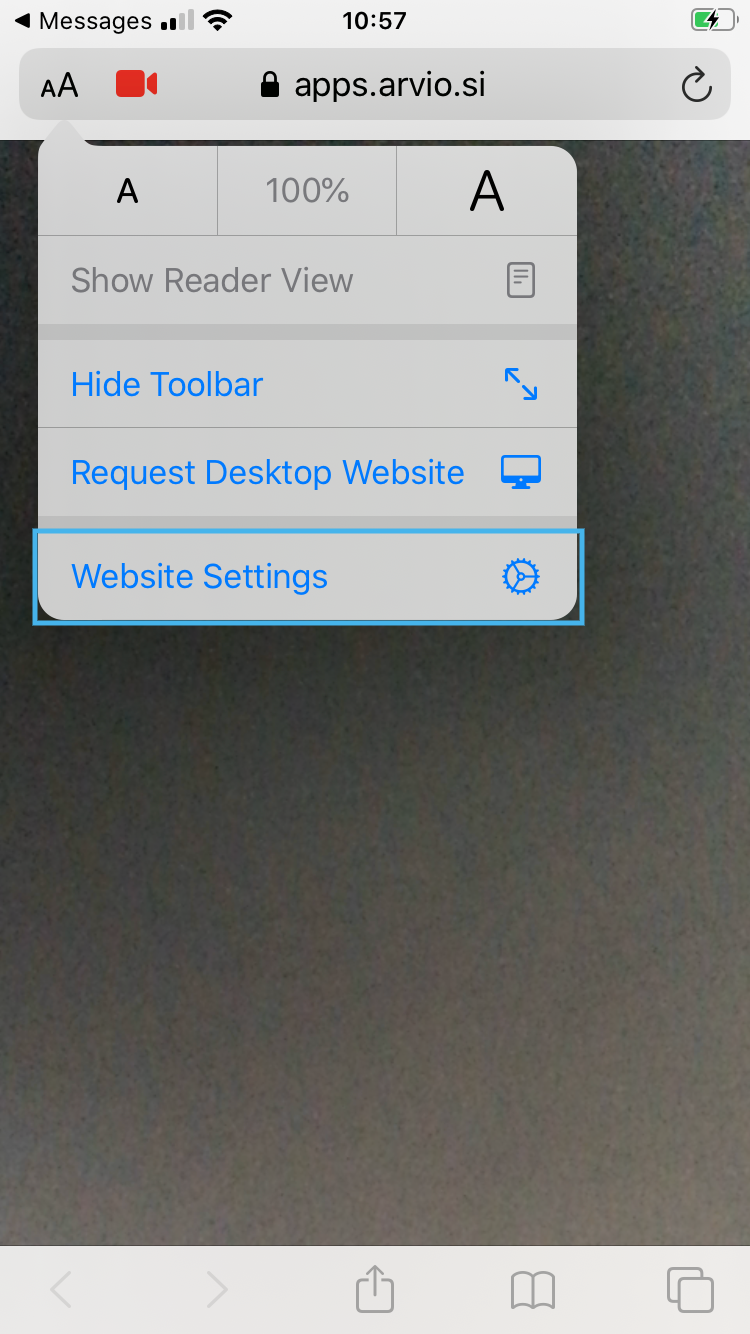
3. Press “Website Settings”
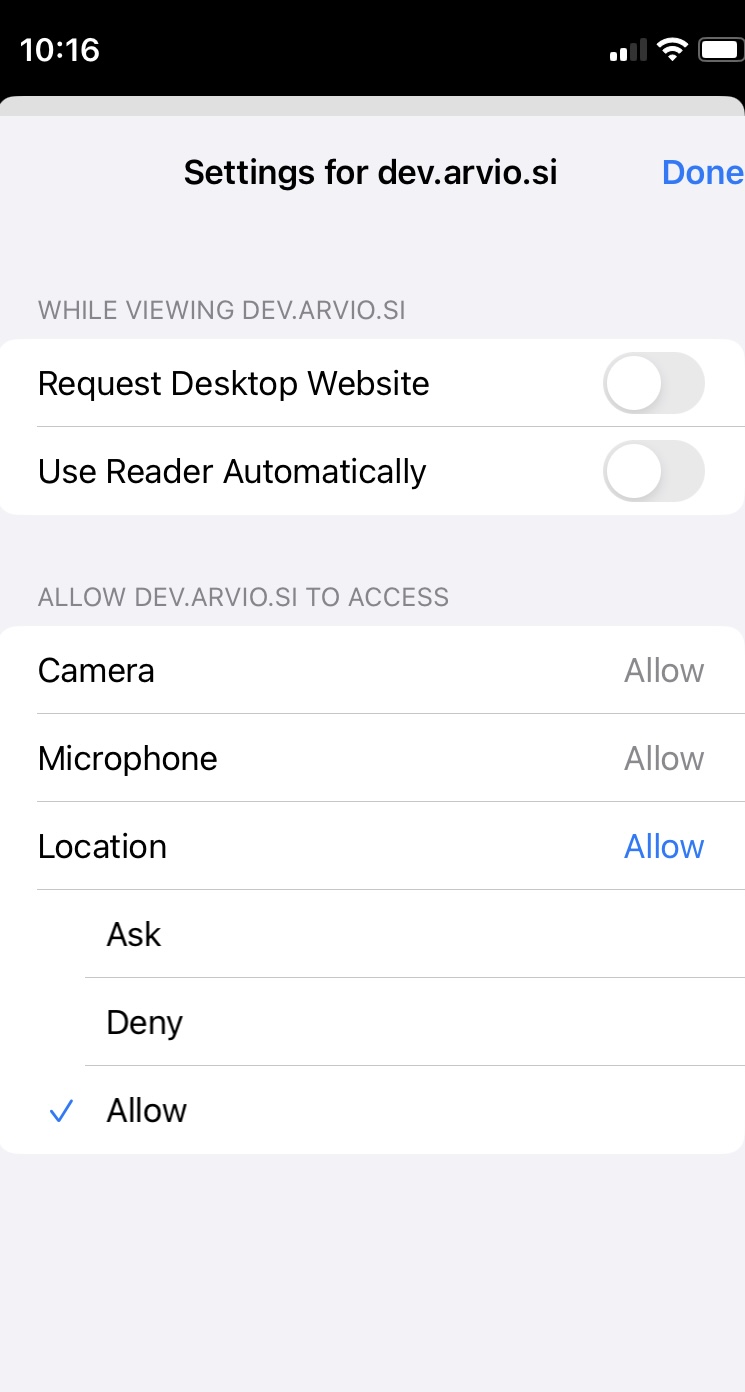
4. Select “Location”.
5. Change to “Allow”.
6. Refresh the page.
Instructions for Android devices:
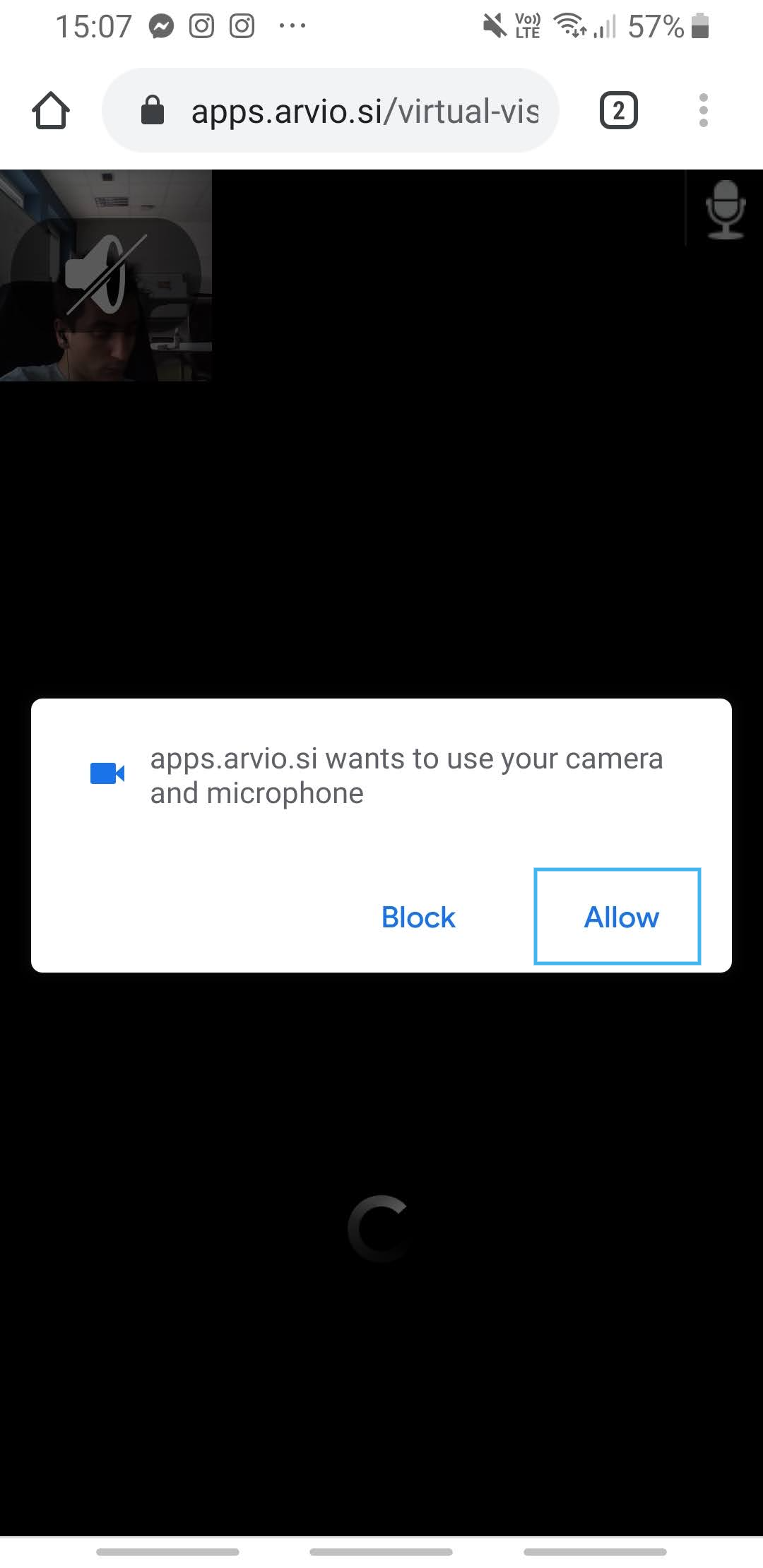
When you open the link to the virtual tour, it asks for permission, as shown in the image. If it did not ask you or you accidentally denied access, you need to re-enable the permission.
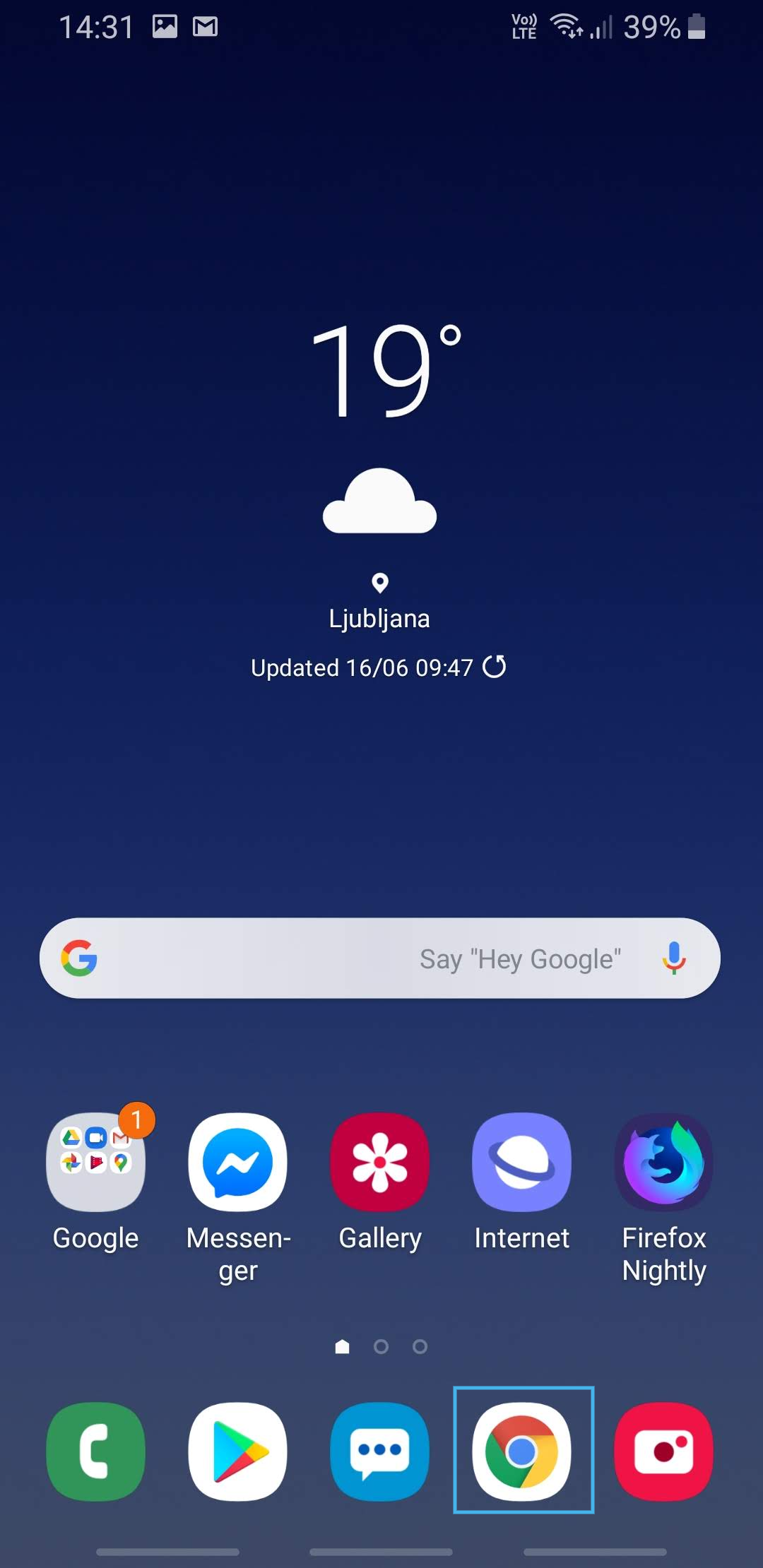
- Open the Chrome application.
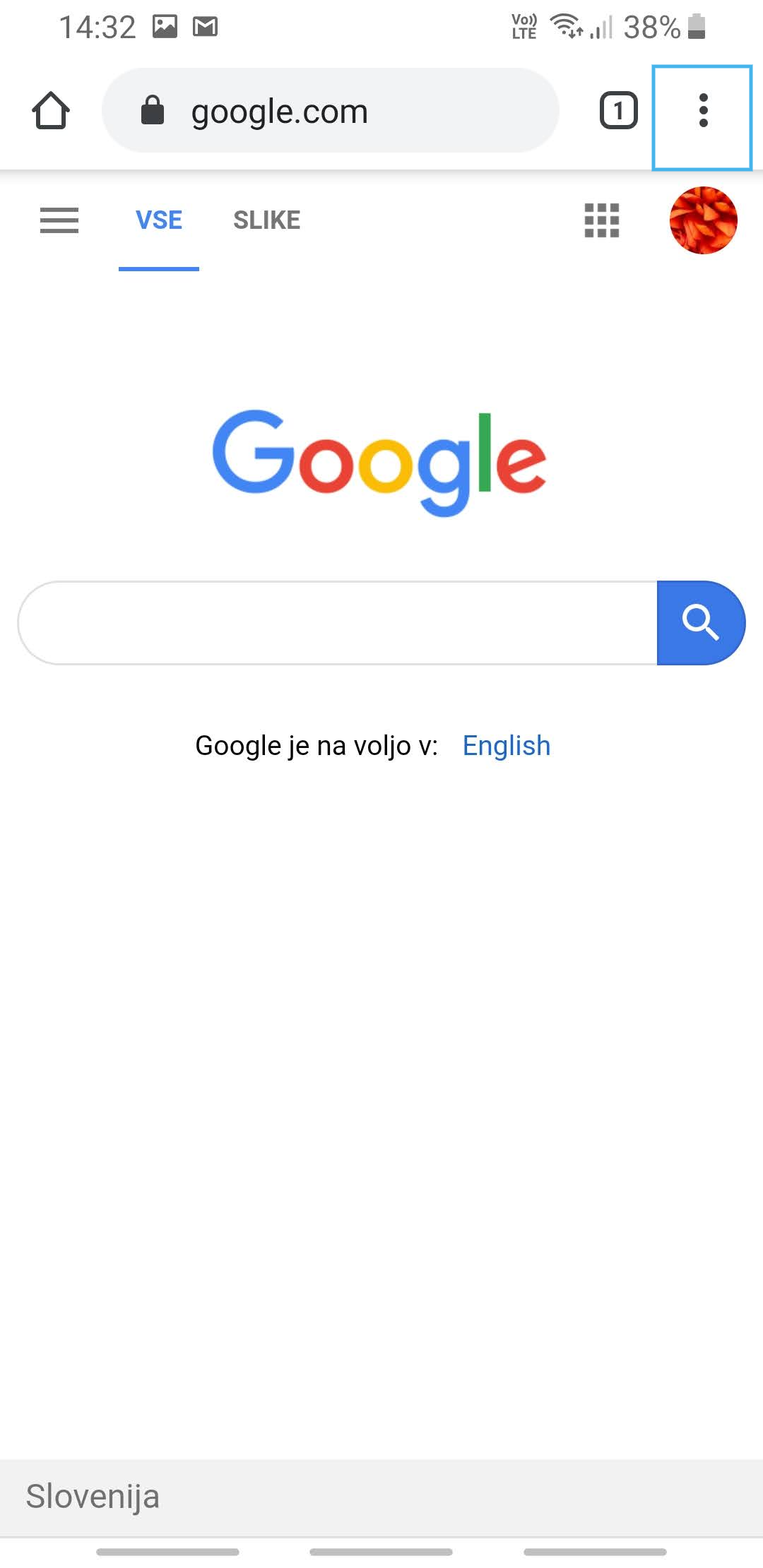
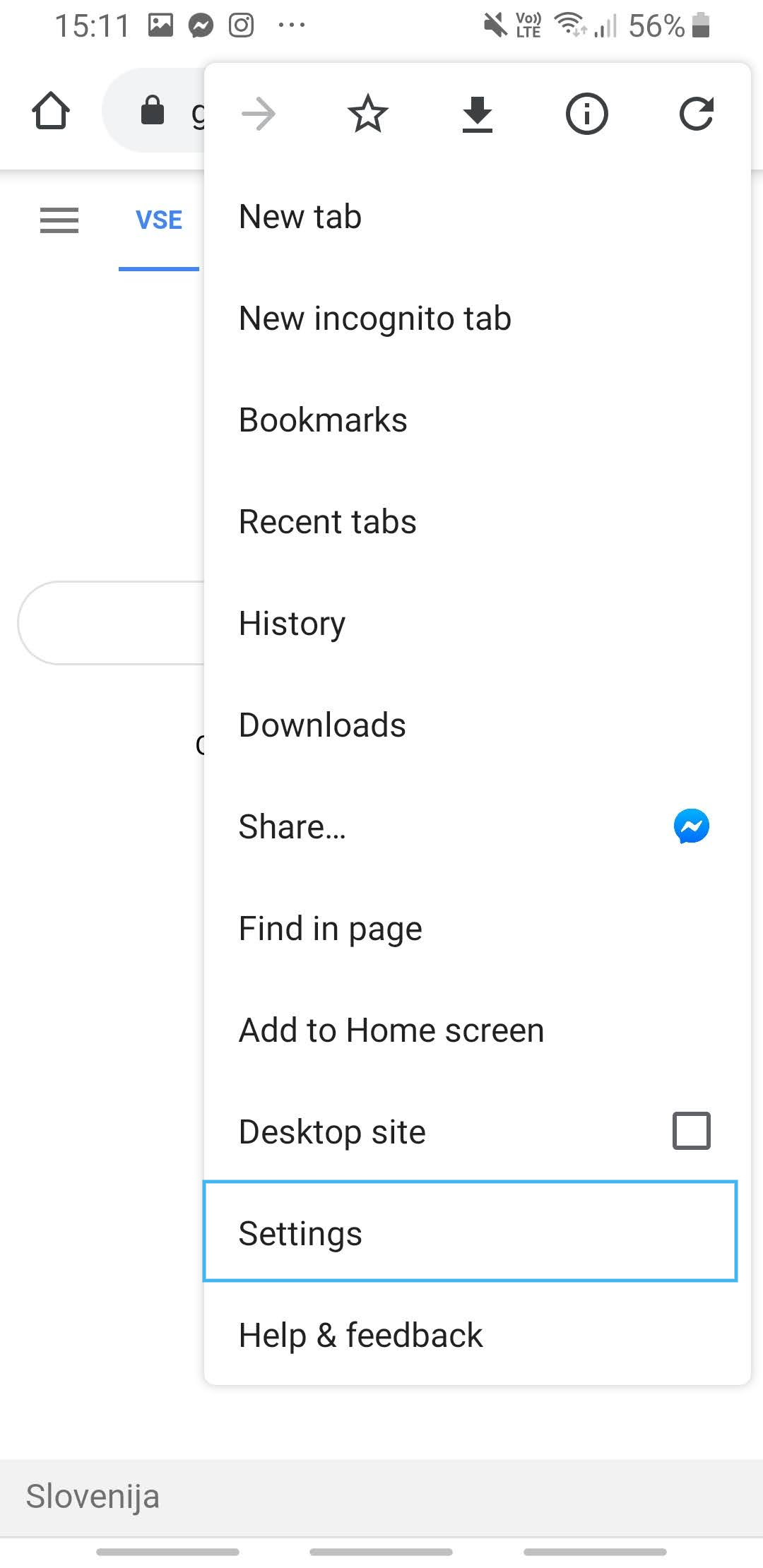
2. In the upper right corner, click the options icon (three dots).
3. Click on “Settings”.
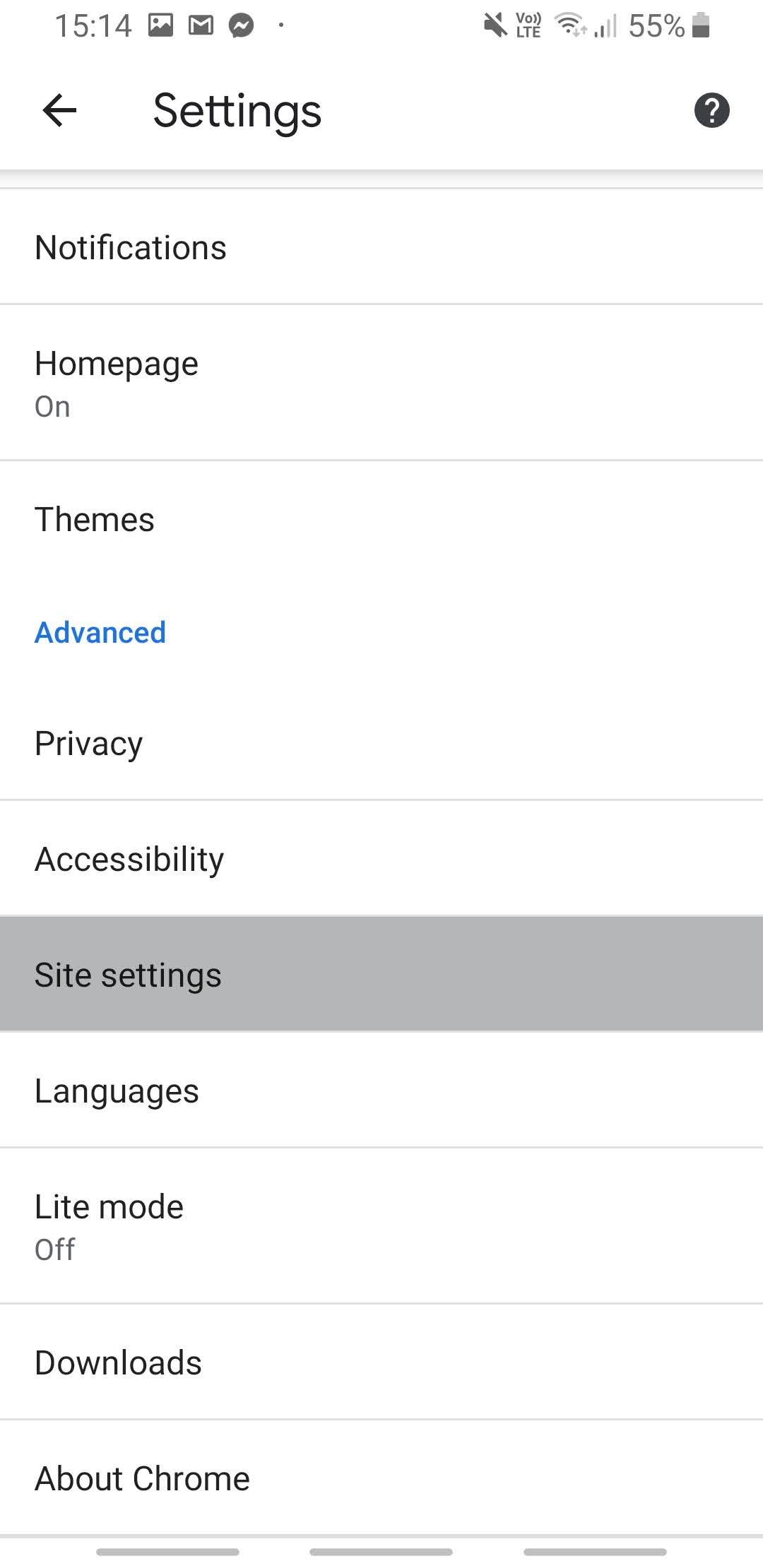
4. At the bottom of the page click “Site settings”.
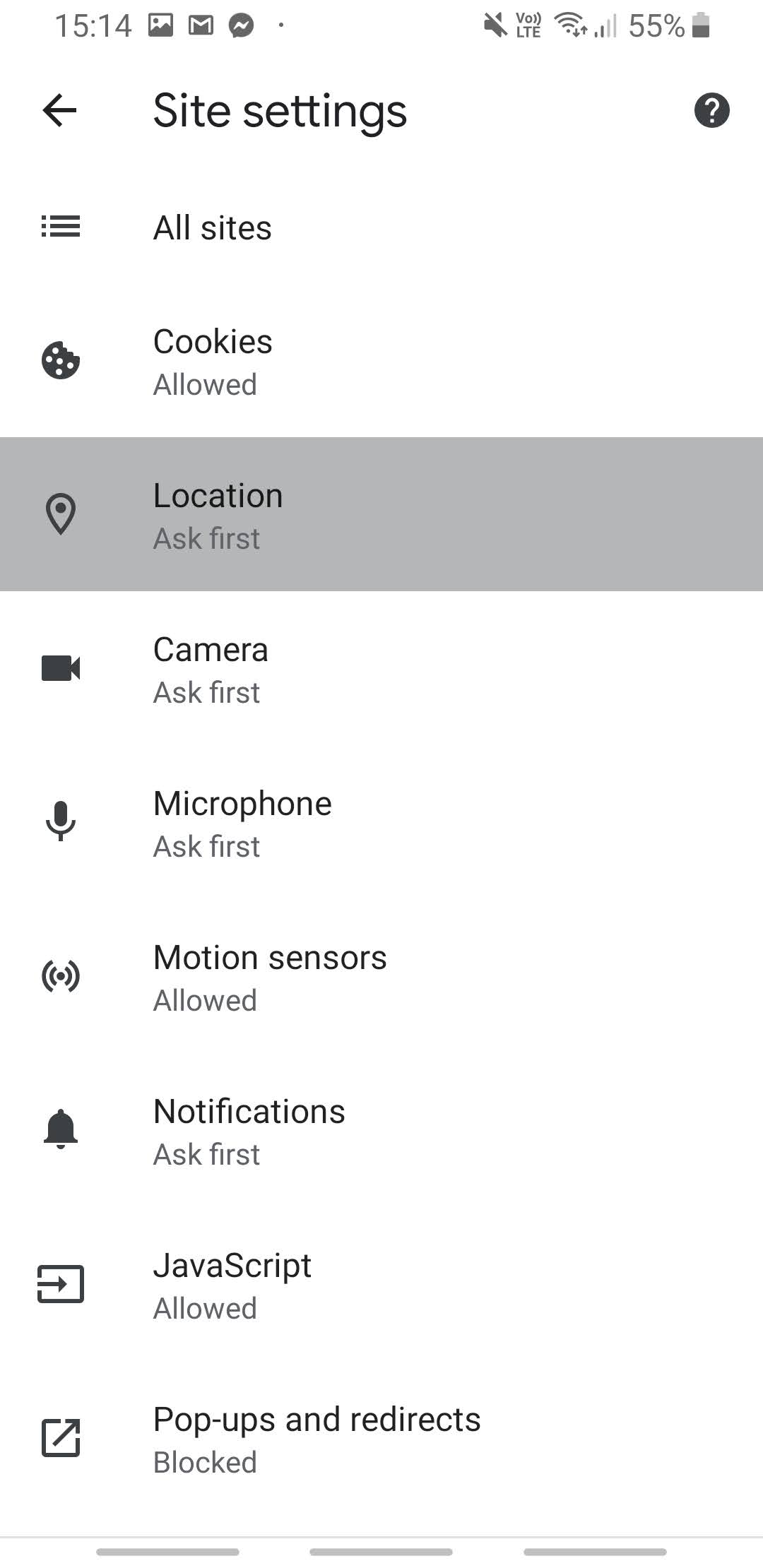
5. Click “Location”.
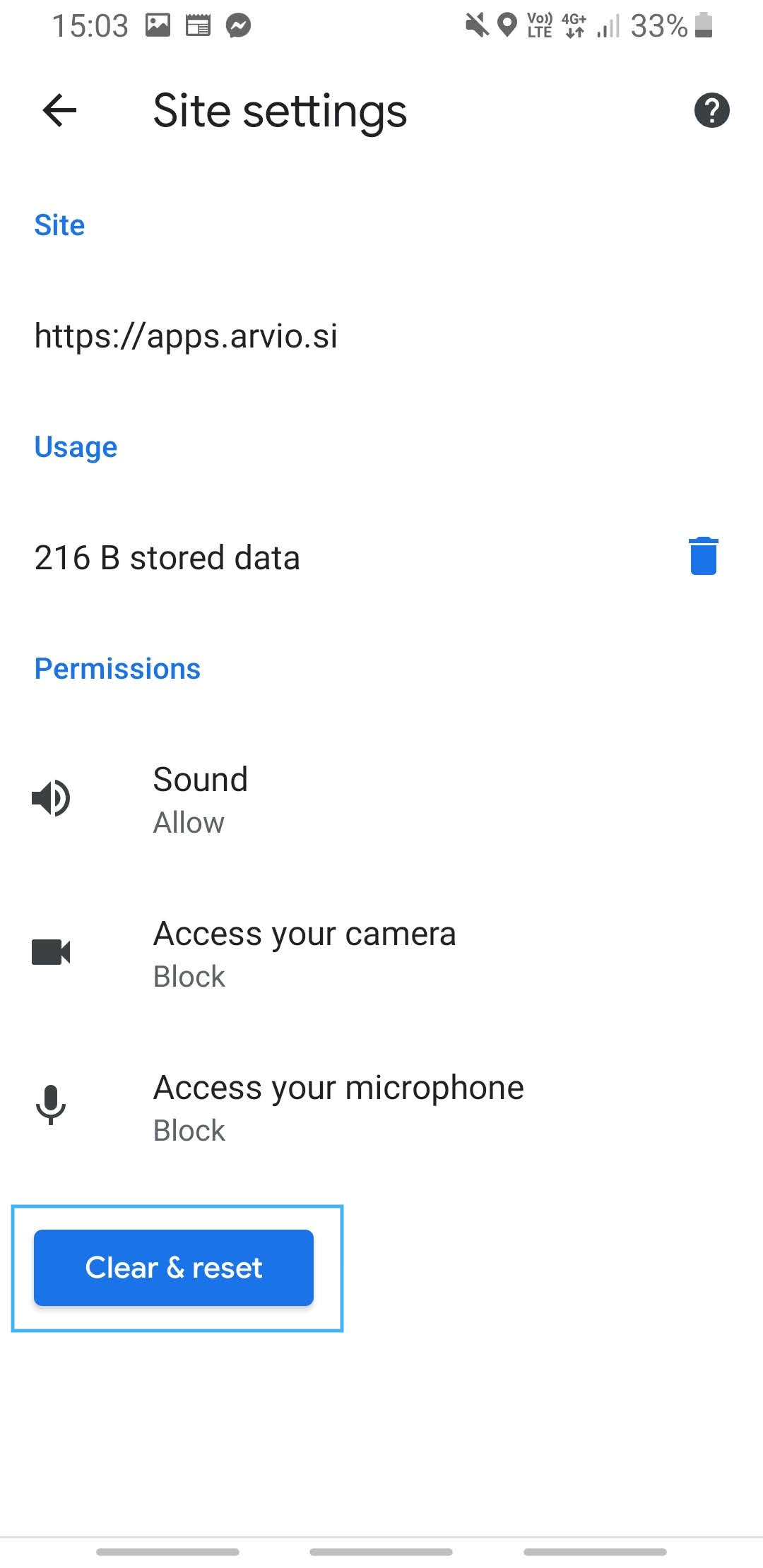
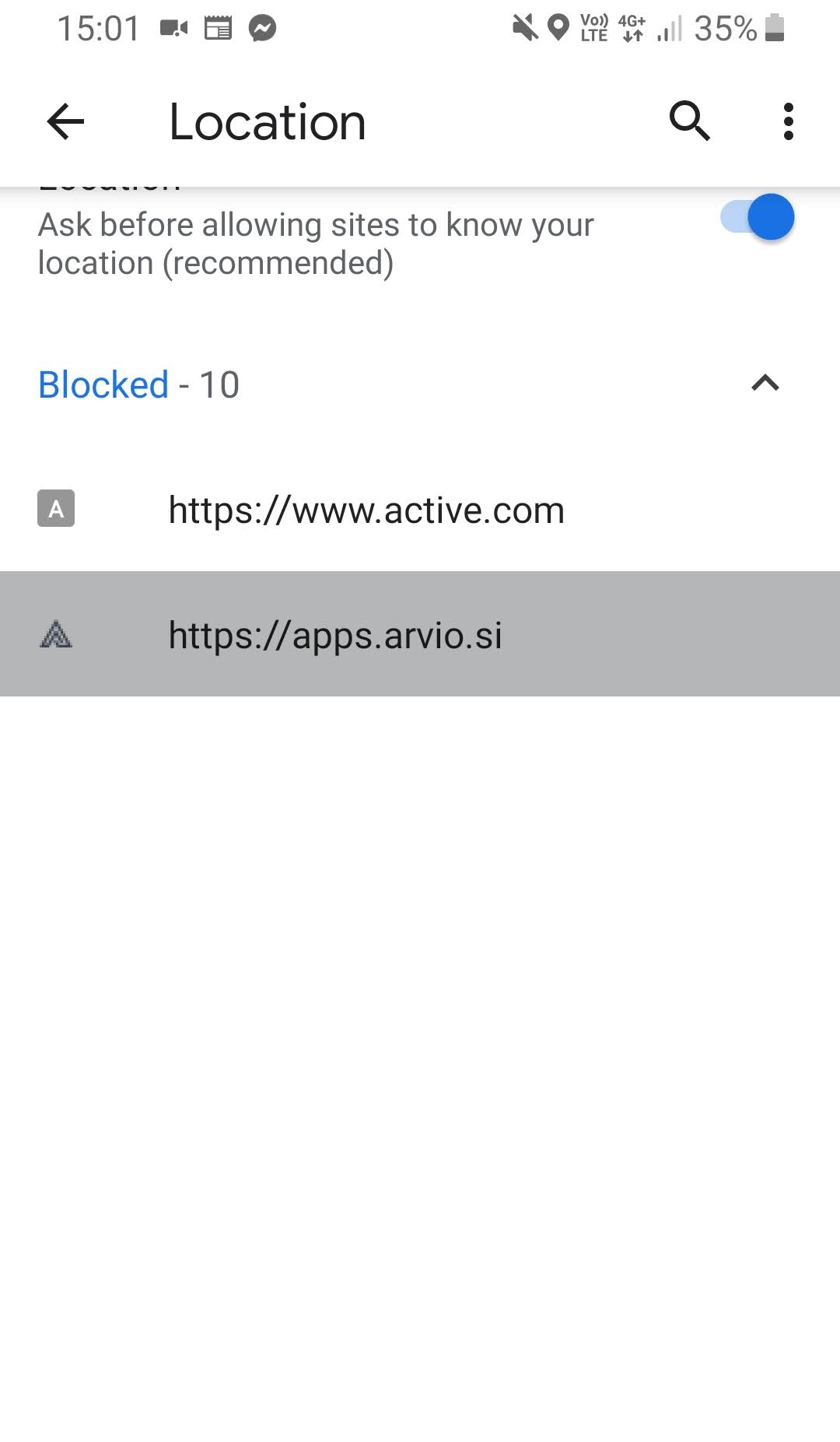
6. Check if https://apps.arvio.si is on the list of blocked sites – if it is, click on the link and proceed to the next step.
7. Press “Clear & reset”.